Computer Repairer Repair Report Generator
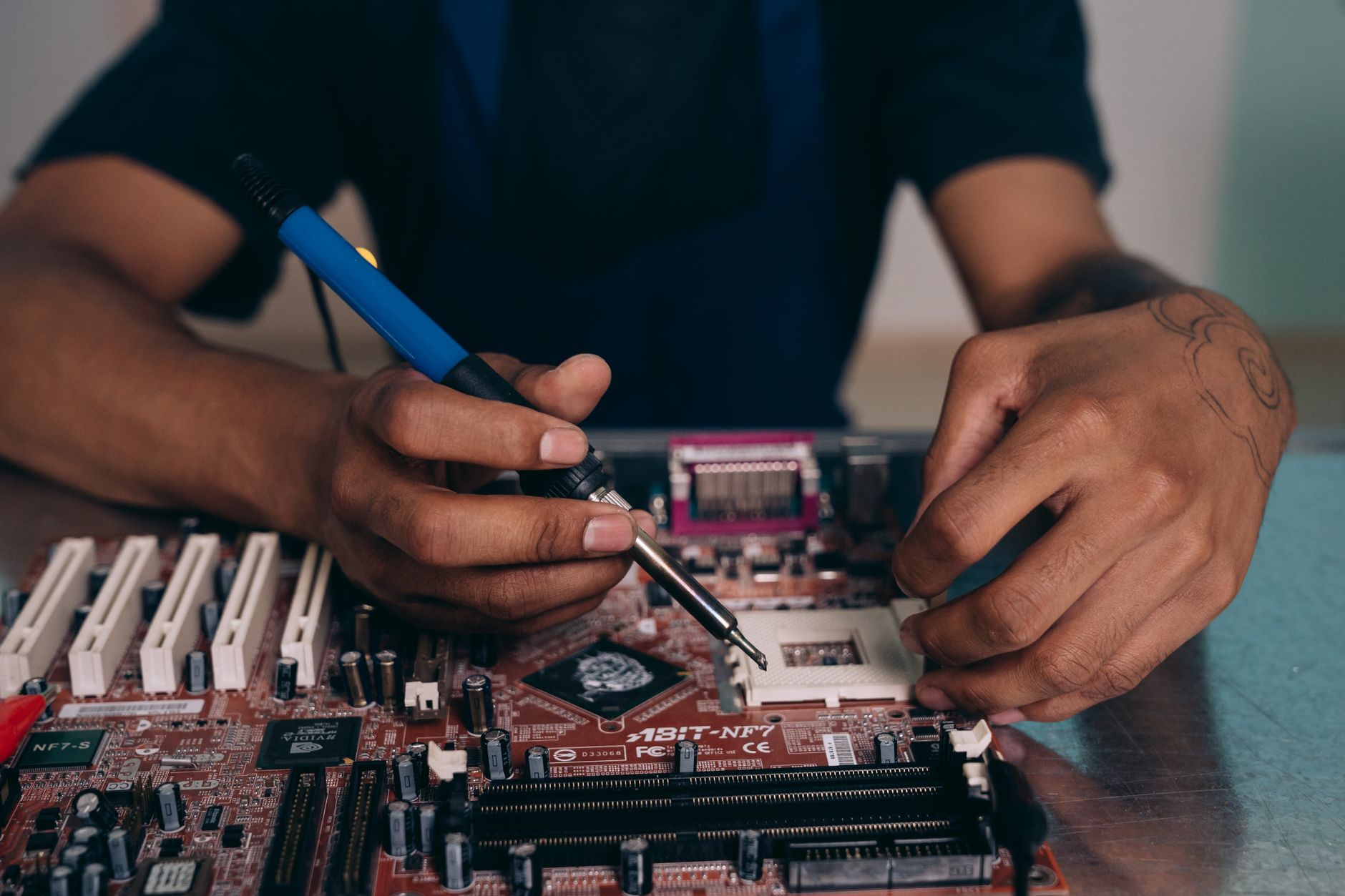
Every computer repair shop knows that a well-written repair report is more than a mere formality—it is the foundational pillar of trustworthy technical service, clear client communication, and sustainable repeat business. When a client hands over a malfunctioning laptop, desktop, custom gaming rig, or business server, the technician carries the critical responsibility of capturing the root problem, the diagnostic steps taken, the parts replaced, and the exact labor involved. Without a consistent, professional document, misunderstandings inevitably arise, warranty claims become messy disputes, and valuable technician time is wasted on phone calls that could have been completely avoided. The Computer Repairer Repair Report Generator built into MyWorkProof addresses these operational challenges head-on, delivering a seamless, browser-based, printable PDF that consistently meets the high expectations of both independent technicians and corporate IT departments.
Repair Report
Create your professional document with the MyWorkProof generator.
Why a Dedicated Repair Report Matters for Computer Repairers
In the fast-paced, high-pressure world of computer repair, technicians routinely juggle multiple complex devices simultaneously, each with its own unique hardware quirks and software configurations. A detailed, structured repair report provides an undeniable audit trail that actively protects the repair shop from liability while giving the client absolute confidence that the work was performed professionally and thoroughly. Furthermore, it serves as an invaluable internal record for inventory management, helping shop owners track which hardware components fail most frequently, which suppliers offer the most competitive pricing, and how long specific jobs take to complete. Moreover, many hardware manufacturers, extended warranty providers, and business insurance policies legally require documented proof of professional service before honoring warranty replacements or property claims. By standardizing your workflow with a reliable template, you ensure that every vital data point—from symptom descriptions and diagnostic logs to parts used and labor hours—is accurately recorded every single time.
How MyWorkProof’s Generator Simplifies the Process
MyWorkProof operates as a fully browser-based utility platform, which means there is absolutely no cumbersome software to install, no lingering background processes, and zero sensitive data stored on external servers. You simply open the Repair Report Generator, fill in the intuitive input fields that directly match your everyday shop workflow, preview the document in real time, and immediately print or save it as a cleanly formatted PDF. The user interface is purposefully clean, featuring logical sections that mirror the exact lifecycle of a computer repair ticket: client contact information, hardware device specifics, reported issue description, technical diagnostics, parts and labor breakdowns, and professional final recommendations. Because this tool runs locally directly within your web browser, you retain absolute, uncompromised control over every piece of data you enter, ensuring maximum compliance with privacy and security standards.
Step-by-Step Guide to Creating a Professional Repair Report
1. Open the generator. Click the link above to launch the web-based interactive form. The page loads instantly; no account creation, subscription, or login is required to get started.
2. Enter client and device information. Accurately fill in the customer’s full name, direct phone number, email address, and the target device's manufacturer, exact model, and serial number. Precise asset identification prevents costly future confusion, particularly when servicing multiple identical devices for corporate or educational clients.
3. Describe the reported issue. Use the designated "Problem Description" field to capture the client’s exact words verbatim regarding the malfunction, then supplement this with your own initial technical observations gathered during intake.
4. Record diagnostic steps. Systematically list every diagnostic test you performed—ranging from POST checks and power rail tests to MemTest86 runs and SMART drive scans—along with their respective outcomes. This demonstrates thoroughness and protects your business if a client ever disputes your diagnostic conclusions.
5. Add parts and labor. For every hardware component you replace (such as RAM sticks, NVMe SSDs, power supply units, or LCD panels), select or type the part name, part number, required quantity, unit cost, and calculated total cost. Enter your total labor hours and hourly shop rate; the generator automatically computes the subtotal.
6. Write final recommendations. Summarize the successful repairs completed, outline any critical follow-up actions the client should take, and detail the specific warranty terms covering the newly installed components.
7. Review and preview. Click the “Preview” button to inspect the finalized layout of the PDF. Check diligently for typographical errors, verify part numbers, and confirm that all required financial and technical fields are populated.
8. Print or save. Utilize your browser’s native print dialog to produce a physical hard copy for the client or select “Save as PDF” to archive a digital copy. The resulting PDF file is primed for instant emailing or attachment to your ticketing software.
Information You Should Have Ready Before Starting
Preparing your technical data ahead of time significantly accelerates the report-generation process and minimizes the likelihood of omitting vital details. Keep a standardized intake checklist at your workbench that includes:
- Client full name, direct telephone number, and active email address.
- Device brand, exact model number, serial service tag, and warranty status.
- Precise description of the client’s initial problem statement.
- Specific diagnostic utilities and hardware testing suites used (e.g., Prime95, FurMark, CrystalDiskInfo).
- Exact part numbers, supplier vendor names, and wholesale costs for any replacement components.
- Your standardized shop labor rate and flat-fee service charges.
- Any special client requests, such as data migration preferences or privacy restrictions.
Having these exact data points at your fingertips enables you to complete a comprehensive, audit-ready repair report in under five minutes, even during the busiest hours of your shop's operations.
Realistic Example: From Call to Completed Report
Consider a practical scenario: A client named Sarah calls your workshop stating her workstation laptop will not boot into the operating system. She provides her device make (Dell XPS 13) and serial tag over the phone. You schedule an intake, and upon arrival, you record her contact details and her exact complaint: "Laptop powers on, keyboard lights up, but the screen remains completely black and no operating system loads." After placing the laptop on your ESD-safe workbench, you perform a power-on self-test, discover a corrupted BIOS configuration paired with a failing SODIMM RAM module, replace the faulty memory stick with a new 16GB DDR4 module, reflash the BIOS, and verify system stability.
Using the MyWorkProof generator, you populate the report fields as follows:
- Client Information: Sarah Lee, 555-0123, sarah.lee@example.com.
- Device Details: Dell XPS 13 (Model 9310), Serial #DX13A12345, out of manufacturer warranty.
- Problem Description: "Laptop powers on, backlights illuminate, but display remains black and does not boot."
- Diagnostics: POST beep code analysis indicates a memory initialization failure; MemTest86 confirms severe RAM sector corruption.
- Parts Used: 1 × 16GB DDR4 3200MHz SODIMM RAM, $45.00.
- Labor: 1.5 hours of advanced hardware troubleshooting and BIOS recovery @ $75.00/hr = $112.50.
- Recommendations: Advise the implementation of a 3-2-1 cloud data backup strategy; monitor system thermal performance over the next week.
The instant preview displays a remarkably clean, professional PDF document. You print a physical copy for Sarah’s pickup folder and email her the digital PDF receipt. The entire administrative workflow takes less than ten minutes, enhancing your professional reputation through promptness and clarity.
Customization Options to Match Your Shop’s Branding
While the default template layout is purposely engineered for maximum readability and legal clarity, you can easily tailor the visual presentation to align with your computer repair shop’s unique brand identity. The generator accommodates various operational setups by allowing you to:
- Incorporate your official business logo into the header section of the document.
- Adjust accent formatting to match your established corporate color scheme.
- Select between different measurement and currency formats depending on your geographic region.
- Include customized tracking fields, such as internal service ticket numbers, technician employee IDs, or authorization signatures.
Because all customizations and entries persist locally within your current browser session, you can freely test different layout variations without impacting external users or risking data leakage.
Common Mistakes to Avoid When Completing a Repair Report
Even seasoned technicians can occasionally fall into traps that compromise the quality and legal utility of their service documentation. Avoid these frequent missteps:
- Leaving mandatory fields blank: Even if a particular section seems minor, entering a clear "N/A" prevents the PDF report from appearing unfinished or unprofessional.
- Typographical errors in part numbers: Always double-check manufacturer part numbers and SKUs; a single transposed digit can cause severe inventory discrepancies and warranty tracking nightmares.
- Vague symptom descriptions: Writing "computer broken" provides zero legal or technical context. Always record the exact observable symptoms and client statements.
- Inaccurate labor tracking: Guessing labor hours leads to either undercharging your business or overcharging your clients. Rely on bench timers and strict logging practices.
- Neglecting to document client authorization: If you perform billable repairs beyond the initial scope, always document the client’s verbal or written approval in the final notes.
- Skipping the final preview: Always review the generated PDF layout to catch formatting flaws, awkward line breaks, or missing calculations before printing or sending it.

Documenting Software and Firmware Repairs
Not every service ticket involves swapping out physical hardware components. When your technicians perform operating system reinstalls, virus and malware remediation, registry cleanups, or complex UEFI/BIOS firmware updates, your documentation must precisely capture the software interventions performed. Create a dedicated "Software Actions" section within your diagnostics to explicitly log:
- Original operating system version and build number versus the final patched state.
- Specific hardware driver packages installed, including exact version numbers (e.g., NVIDIA GeForce Driver v536.23).
- Critical security patches and feature updates applied from verified sources.
- Data migration, cloning, or backup methods utilized (e.g., full disk image via Macrium Reflect, selective file transfer) alongside integrity verification checksums.
Maintaining this granular level of software documentation protects your shop against unfounded customer claims asserting that pre-existing software bugs were caused by your service intervention, while simultaneously providing an invaluable roadmap for future troubleshooting sessions.
Handling Remote Support and Managed IT Cases
As modern computer repair shops increasingly expand into remote support, virtual troubleshooting, and managed IT services, documenting work performed off-site becomes just as critical as bench work. Even though there is no physical chassis on your workbench, a formal repair report is essential for accountability. Adapt your documentation template by including a clear "Remote Support Session ID" and specifying the remote connection utility used (e.g., ConnectWise, AnyDesk, TeamViewer). Always record the timestamped client consent for remote access, the exact duration of the active session, and notes concerning any diagnostic logs exported from the remote machine. When billing, clearly delineate remote labor rates from on-site emergency dispatch fees.
Integrating the Report with Your Business Systems
Most established computer repair operations rely heavily on specialized Professional Services Automation (PSA), ticketing systems, or Point of Sale (POS) platforms to manage daily workflows. Once you generate and save your clean PDF report from MyWorkProof, you can seamlessly attach it directly to your customer support ticket via email ingestion or direct file upload. Many forward-thinking shops embed a secure QR code in the document footer pointing directly to the digital knowledge base article or client portal history. If you utilize enterprise accounting software like QuickBooks or Xero, you can easily extract the part and labor totals from your generated report to streamline invoice creation without manual data re-entry.
Legal, Insurance, and Warranty Documentation Tips
When a client brings in a device that is still actively covered under a manufacturer's limited warranty or third-party retail protection plan, your repair report frequently serves as the definitive proof of authorized service or diagnostic failure. Ensure your report incorporates standard protective boilerplate language, such as: "All diagnostic and repair procedures were executed in accordance with industry best practices. Work performed by our facility complies with standard component guidelines." For insurance-related claims resulting from power surges, liquid spills, or physical drops, provide a meticulous breakdown of internal component damage and state whether the equipment is deemed an economic total loss. Always archive signed copies of these reports for the entire duration of the applicable warranty or insurance dispute period.
Accuracy, Privacy, and Legal Considerations
The Repair Report generated via MyWorkProof is designed as a standalone, static PDF document that remains completely under your operational control. Because MyWorkProof operates on a strict zero-retention architecture, none of the customer data, financial figures, or diagnostic details you input are ever stored, logged, or mirrored on external servers. Consequently, your repair business assumes full responsibility for safeguarding these generated PDF records in compliance with regional data privacy laws such as GDPR, CCPA, or HIPAA (if handling healthcare workstations). If your repair workflow involves capturing sensitive client data—such as administrative passwords, encryption recovery keys, or proprietary corporate data—you must ensure that exported PDF files are stored on heavily encrypted local drives or secure, HIPAA-compliant cloud storage environments. Always verify your local industry regulations to determine if additional compliance certifications are required for specialized repair sectors.
Frequently Asked Questions
Can I use the Repair Report Generator on a mobile device or tablet?
Yes. The tool is fully responsive and engineered to function smoothly within modern mobile web browsers on iOS and Android devices, though complex data entry is often faster on a traditional desktop or laptop workstation.
Do I need an active internet connection after the repair report is generated?
No. Once the dynamic PDF has been successfully rendered and saved to your local device, you can view, print, or email it entirely offline. An active internet connection is only required initially to load the generator interface.
Is there a strict limit to how many repair reports I can create?
There are zero artificial limits, usage caps, or subscription paywalls. Because the MyWorkProof repair report tool is completely free and browser-based, you can generate as many professional reports as your daily business volume demands.
Can I edit the PDF document after it has been saved?
Standard PDF files are designed as final, read-only documents to prevent unauthorized tampering. If you discover a mistake or need to add new information, simply return to the generator page, adjust your input fields, and export a fresh, updated PDF version.
What is the best way to obtain a client signature on the report?
You can easily print a physical copy of the generated PDF for the customer to sign manually upon device pickup, or you can import the digital PDF into standard electronic signature software (such as DocuSign or Adobe Sign) prior to emailing it.
Is this generator compliant with GDPR and other international privacy regulations?
Yes. Because MyWorkProof’s architecture does not retain, cache, or process personal user data on centralized servers, it perfectly aligns with privacy-by-design frameworks. However, you remain legally responsible for how you store, transmit, and archive the exported documents within your own business infrastructure.
How should I document recurring hardware failures across multiple client devices?
Utilize the flexible "Final Recommendations" section of the report to document macro-level patterns, such as identifying a specific batch of power supplies suffering from capacitor failure. This intelligence is exceptionally valuable when managing fleet service contracts or negotiating with wholesale hardware vendors.
Can I embed photographs of damaged hardware directly into the report?
The current lightweight version of the generator does not natively embed image files into the PDF layout to ensure fast loading times and clean formatting. However, you can effortlessly attach high-resolution diagnostic photos as separate files alongside the PDF when emailing the final report to your client.
Do I need to maintain a long-term backup archive of these repair reports?
Yes. You should treat every generated repair report as an essential legal and financial business record. Establish a structured local backup protocol using encrypted external drives and secure cloud storage, adopting a consistent file-naming convention that incorporates your internal service ticket numbers.
Get Started Now
Ready to dramatically streamline your workshop documentation, eliminate administrative friction, and impress your clients with impeccably structured, professional repair documentation? Generate your Repair Report now. The tool is 100% free, entirely secure, and instantly accessible—no registration or software installation required. Start transforming every routine computer service call into a crystal-clear, verifiable record that drives your business growth and customer trust.
Comments
Post a Comment