Computer Repairer Maintenance Report Generator

Streamline your technical documentation, prove your diagnostic value, and protect your repair business with a professional, browser-based report generator designed specifically for computer repairers.
Maintenance Report
Create your professional document with the MyWorkProof generator.
Professional Documentation for Modern IT and Computer Repair Specialists
In the fast-paced world of computer repair and IT support, clear communication is just as important as technical skill. Whether you are troubleshooting persistent blue screen errors on a high-end gaming desktop, replacing failed solid-state drives in enterprise laptops, or optimizing sluggish business workstations, your clients need to know exactly what work was performed, why it was necessary, and how their hardware is performing post-service.
The Computer Repairer Maintenance Report Generator by MyWorkProof is built to eliminate the administrative friction of writing service summaries from scratch. Instead of wrestling with fragmented text files or generic word processor templates, you can input your diagnostic findings, hardware replacements, and software interventions directly into a structured framework that outputs a clean, professional PDF ready for client handover.
This tool operates entirely within your browser environment. Your sensitive client data, hardware serial numbers, and proprietary diagnostic notes stay on your local device. Once you finish detailing the service session, simply review your layout and utilize the built-in browser print and save functions to generate a permanent PDF record for your business archives and client receipt folders.
Modern computer repair shops face immense pressure to deliver rapid turnarounds without sacrificing quality. When customers drop off distressed systems, they are often anxious about data loss, unexpected expenses, and whether their machine will ever run at peak efficiency again. By integrating a standardized, comprehensive maintenance reporting routine into your daily operations, you transform an abstract technical fix into a tangible, high-value service. Clients can physically see the diagnostic rigor, the precise replacement parts utilized, and the thorough verification steps undertaken by your technicians. This transparency builds profound trust, fosters long-term customer loyalty, and drastically reduces post-service disputes regarding labor costs or hardware warranties.
The Computer Repair Maintenance Workflow
A professional maintenance workflow does not end when you screw the chassis back together or complete a malware scan. Closing the loop with comprehensive documentation establishes credibility, prevents recurring miscommunications, and provides a clear audit trail if warranty claims or follow-up service requests arise.
1. Intake and Initial Diagnostics
Every successful repair begins with a thorough intake assessment. Documenting the initial state of the computer protects your shop from liability regarding pre-existing cosmetic damage, intermittent hardware faults, or failing components that have not yet completely crashed. Note down asset tags, serial numbers, operating system versions, and the primary complaint reported by the client. Capturing these foundational data points ensures that your entire technical team is aligned from the moment the device hits the workbench.
During intake, verify whether the client has existing data backups. While you may not be performing data recovery immediately, establishing baseline awareness of missing boot drives, corrupted file systems, or encrypted partitions (such as BitLocker keys) prevents catastrophic surprises later in the repair cycle. Always record passwords or request temporary user PINs if OS-level testing is required, and ensure secure handling of these credentials throughout the repair lifecycle.
2. Hardware and Software Intervention
During the bench work phase, track every action taken. Did you re-seat loose RAM modules? Did you clean out heavy dust accumulation from heatsinks and thermal fans? Did you run MemTest86, CrystalDiskInfo, or specialized OEM diagnostic suites? Recording these specific steps provides irrefutable evidence of the labor performed, justifying your service fees and demonstrating your methodical approach to troubleshooting.
Software interventions require equal documentation discipline. Note every driver rollback, BIOS update, registry edit, malware removal tool executed, and operating system patch applied. If you performed a clean installation of Windows or Linux, document partition layouts, backup restorations, and software license key re-associations. This meticulous tracking ensures that if another technician inherits the machine in the future, they have a complete historical map of all modifications made to the environment.
3. Post-Repair Benchmarking and Delivery
Before releasing the machine back to the customer, stress-test the system to ensure stability under load. Record final temperatures, benchmark scores, or update statuses in your maintenance report. Handing the client a structured report detailing thermal performance, driver updates, and preventive recommendations elevates your service from a basic fix to a premium IT consulting experience.
The delivery phase is also your primary opportunity to review the maintenance report directly with the customer. Walk them through the replaced hardware parts, explain the root cause of the initial failure (such as power surges damaging the motherboard capacitors or thermal throttling caused by dried-out thermal paste), and highlight the preventive tips listed at the bottom of the report. This educational touchpoint cements your reputation as an authoritative expert in computer hardware and system administration.
What Information to Prepare Before Generating Your Report
To make the documentation process as swift and accurate as possible, gather the following details before opening the generator:
- Client and Asset Information: Customer name, business entity (if applicable), contact details, device make, model, serial number, and asset tag.
- Initial Symptom / Ticket Details: The exact error messages, client observations (e.g., "computer shuts down randomly during gaming"), and environmental conditions.
- Diagnostic Findings: Results from S.M.A.R.T. disk drives checks, memory error logs, power supply rail voltages, or malware detection scans.
- Parts Replaced / Upgraded: Exact part numbers, capacities (e.g., 1TB NVMe SSD, 16GB DDR4 3200MHz RAM), and warranty terms for new components.
- Software Modifications: Operating system reinstalls, driver updates, BIOS flashes, registry tweaks, and antivirus deployments.
- Technician Recommendations: Future maintenance advice, such as upcoming battery replacements, dust cleaning intervals, or data backup strategies.
- Financial and Billing Summary: Labor hours billed, flat-rate service fees applied, hardware component costs, and applicable taxes to provide a complete billing record alongside the technical log.
Step-by-Step Guide: How to Use the Generator
- Navigate to the Tool: Access the generator via the direct link provided on this page to load the specialized computer repair interface.
- Fill in Client & Device Metadata: Enter the customer details and specific hardware identifiers into the designated fields. Ensure that serial numbers are transcribed accurately to maintain valid warranty records.
- Detail the Work Performed: Use the structured sections to outline diagnostics, physical repairs, and software optimizations. Be precise and professional, avoiding overly dense jargon where simple explanations suffice, while retaining exact technical specifications.
- Preview the Layout: Check the real-time preview to ensure all serial numbers, service notes, and recommendations are clearly legible and properly formatted across your chosen document view.
- Save or Print: Trigger your browser's print dialog to save the document as a secure PDF or print a physical copy for your shop counter and customer handover binder.
- Archive for Business Records: Store a digital copy of the generated PDF in your client management database or local encrypted backup repository for future reference during recurring service agreements.
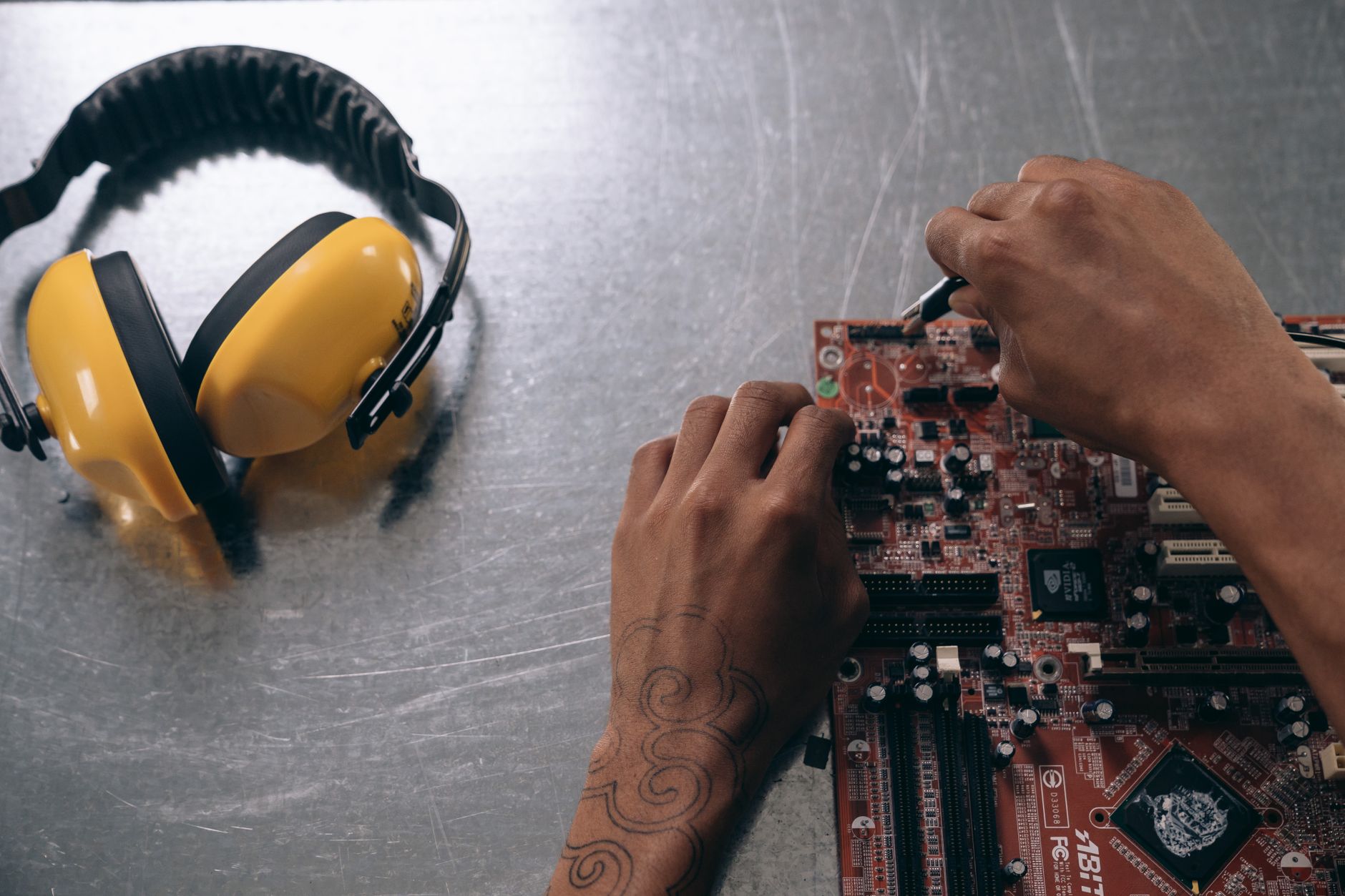
Realistic Example: Desktop Workstation Overhaul & Repair Report
Sample Maintenance Report Output
Service Record ID: MWP-CR-2023-8841
Date: October 24, 2023
Technician: Alex Vance, Senior Systems Tech
Client: Apex Graphic Design Studio
Device Specifications:
Custom Workstation Tower (Intel Core i9-12900K, 32GB RAM, NVIDIA RTX 3080, Windows 11 Pro, S/N: C02G901VLVD6)
Reported Issue:
System experiencing sudden thermal shutdowns during heavy 3D rendering and video export sessions. Loud fan noise noted from chassis top panel.
Diagnostic Findings:
- CPU core temperatures reaching 100°C under 40% load due to failed AIO water cooling pump motor failure.
- Heavy dust accumulation obstructing radiator fin array and intake mesh filters.
- S.M.A.R.T. disk check passed on all local NVMe storage drives with 98% estimated health remaining.
Actions Taken / Repairs Performed:
1. Flushed failed liquid cooling loop and removed compromised AIO unit. Replaced with a high-performance dual-tower air cooler (Noctua NH-D15) for improved long-term reliability and zero pump failure risk.
2. Cleared all chassis dust filters, washed magnetic mesh guards, and cleaned internal components with filtered compressed air.
3. Updated motherboard BIOS from version F10 to version F22 to resolve fan curve management bugs and improve power delivery stability.
4. Ran 24-hour Prime95 and FurMark stress tests; maximum CPU temperature stabilized at 74°C under full multi-core load.
Technician Recommendations:
- Perform bi-annual dust cleaning of intake filters to maintain optimal thermal dissipation.
- Consider upgrading secondary storage to a dedicated scratch NVMe drive within the next 12 months as active rendering cache sizes increase.
Best Practices for Technical Documentation in IT Repair Shops
Maintaining high standards of technical documentation goes beyond filling out forms; it is a core operational strategy that influences shop profitability, legal protection, and client retention. When computer repair businesses implement rigorous documentation standards, several immediate operational benefits emerge:
Establishing Legal Protection and Accountability
Disputes over repair outcomes can severely damage a small business's reputation and financial stability. If a client claims that their graphics card was damaged while in your care, having an intake report that documents pre-existing cosmetic condition, bent I/O shields, or intermittent artifacting provides immediate protection. Similarly, recording specific replacement part serial numbers ensures that if a client attempts to swap out a defective component for a newer model under false pretenses, your service record serves as absolute proof of the exact hardware installed during your bench session.
Enhancing Team Collaboration in Multi-Technician Shops
In repair shops with multiple technicians, handoffs are inevitable. Technician A might perform initial diagnostics and intake on a Monday, while Technician B executes motherboard micro-soldering on Wednesday, and Technician C handles final benchmarking and client delivery on Friday. Without a centralized, standardized maintenance report framework, critical context gets lost in casual conversations or sticky notes. Utilizing a structured generator ensures that every team member reads the same diagnostic trail, understands what software tools were run, and knows exactly what testing benchmarks remain before sign-off.
Driving Recurring Revenue Through Preventive Maintenance Insights
A maintenance report is not merely a receipt for past fixes; it is a powerful sales tool for future preventive services. When you document declining battery health, aging mechanical hard drives showing early S.M.A.R.T. reallocation sectors, or thermal paste degradation on aging gaming laptops, you give clients actionable insights backed by empirical data. Recommending a proactive SSD upgrade or cooling system overhaul based on a professional report feels like expert consultancy rather than aggressive upselling, leading to significantly higher conversion rates on recurring service contracts and maintenance agreements.
Common Documentation Mistakes to Avoid
Clear documentation protects both your business and your clients. Avoid these frequent pitfalls when logging computer repairs:
- Vague Descriptions: Writing "fixed computer" or "ran tests" gives the client zero insight into the value of your labor. Always specify tools used, error codes encountered, and components touched.
- Omitted Serial Numbers: Failing to record part serial numbers during warranty replacements can lead to disputes if a component fails later or if a customer returns with a different defective unit.
- Ignoring Pre-Existing Damage: Always note scratches, cracked bezels, dented laptop chassis, or missing screws on the intake report before starting physical bench work.
- Skipping Preventive Advice: A maintenance report is a prime opportunity to educate clients on cybersecurity hygiene, local and cloud backup routines, and hardware longevity. Don't leave this section blank.
- Failing to Record Operating System Details: Omitting exact OS build numbers, architecture (32-bit vs. 64-bit), and active license statuses can cause severe headaches if software activation fails after a motherboard replacement.
- Lack of Clear Pricing Transparency: Mixing up labor charges and component costs without itemization can create distrust. Always align your technical notes with a clear financial breakdown.
Accuracy, Data Privacy, and Regulatory Compliance
When handling client computers, you often have access to sensitive financial records, personal photos, tax documents, and proprietary business files. MyWorkProof is engineered with privacy at its core. Because the generator operates entirely client-side within your browser, your workflow data and customer details are never uploaded, harvested, or stored on external cloud databases by our application.
Technical accuracy is equally critical. When logging hardware replacements or diagnostic voltages, ensure your instruments are properly calibrated. Misreporting power supply rail outputs or misidentifying component part numbers can lead to incorrect warranty claims with component manufacturers. Always double-check model numbers against physical labels inside the device enclosure.
Please note that MyWorkProof is a productivity and documentation utility. It does not replace formal electronic waste disposal (e-waste) certifications, state-mandated electrical safety compliance documents, or specialized enterprise service-level agreement (SLA) legal contracts. For highly regulated government, financial, or healthcare IT environments (such as HIPAA-compliant medical workstations), ensure your generated service summaries are paired with any required official institutional compliance forms and data destruction certificates.
Furthermore, when performing data sanitization or hard drive destruction services, maintenance reports must be supplemented with verified certificates of erasure (such as DoD 5220.22-M or NIST 800-88 standards) to ensure full legal adherence to data privacy regulations like GDPR and CCPA. Never rely solely on a standard repair ticket when handling sensitive data destruction tasks.
Frequently Asked Questions
1. What is a Computer Repair Maintenance Report?
It is a formal document created by computer technicians to record diagnostic findings, hardware replacements, software tweaks, and post-repair benchmarks for a client's device, serving as both a service receipt and an official technical record.
2. Is this report generator completely free to use?
Yes, the MyWorkProof generator is completely free, allowing you to create professional documentation without recurring software subscriptions, hidden paywalls, or mandatory account creation.
3. Can I save the report as a PDF?
Absolutely. Once you input your repair data and review the live preview, you can use your browser's native print function to save the document as a high-quality, professional PDF ready for emailing or printing.
4. Does MyWorkProof store my customers' private data?
No. All data processing happens locally in your web browser. We do not store, log, or harvest your customer records, device serial numbers, or repair notes on any external servers.
5. Can I use this for mobile phone or tablet repairs?
While this specific tool is tailored for computer repairers (desktops, laptops, workstations, and servers), the flexible structure can accommodate various electronics repair workflows. However, for dedicated mobile device types, look for specialized templates if needed.
6. How do I include my business logo and contact details?
You can input your shop name, technician credentials, contact email, physical address, and phone number directly into the generator fields so they appear prominently at the top of the finalized report.
7. What should I do if a repair requires complex legal disclaimers?
If your shop operates under specific local liability laws, data loss disclaimers, or complex warranty stipulations, you can append your standard terms and conditions to the notes section of the report.
8. Do I need to install any software or browser extensions?
No installation is required. MyWorkProof is a web-native application that runs instantly in any modern web browser across desktop computers, tablets, and mobile devices.
9. How does this report help with hardware warranty claims?
By recording exact component serial numbers, purchase dates, and failure symptoms, you provide manufacturers with the exact technical proof required to process RMA (Return Merchandise Authorization) claims without administrative delays.
10. Can I customize the terminology for different types of IT clients?
Yes. The flexible text inputs allow you to tailor your descriptions whether you are communicating with non-technical residential clients who appreciate plain English or enterprise IT directors who require precise engineering terminology.
Comments
Post a Comment