Computer Repairer Customer Sign-Off Generator
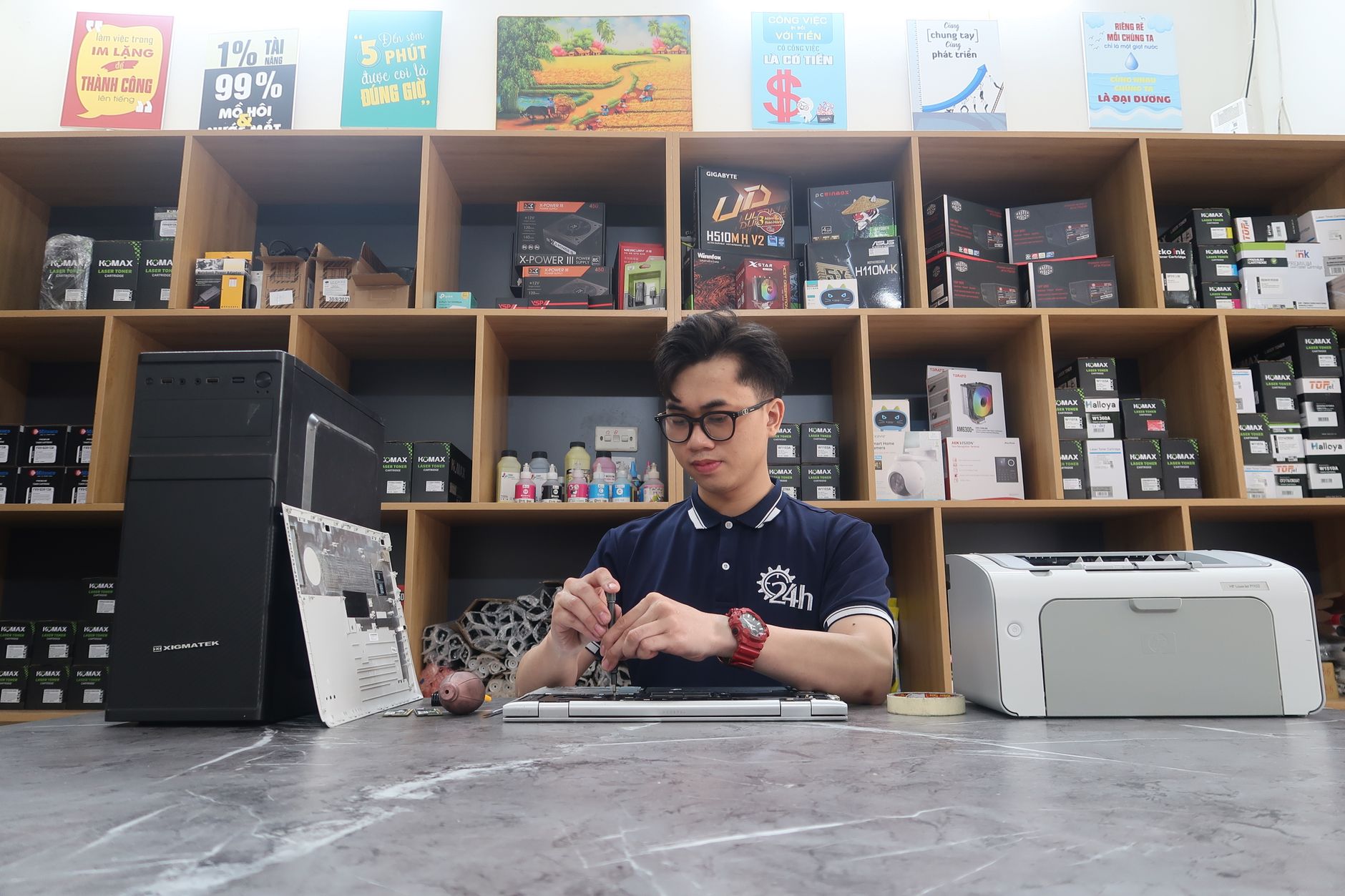
When a computer repair job is finished, the final step is often the most important: getting the customer’s written acknowledgment that the work has been completed to their satisfaction. A well‑crafted Customer Sign‑Off not only protects your business from disputes, it also reinforces professionalism, clarifies warranty terms, and provides a clear record for both parties. MyWorkProof’s free, browser‑based Computer Repairer Customer Sign‑Off Generator lets you create a polished, printable document in minutes—no design skills required.
Customer Sign-Off
Create your professional document with the MyWorkProof generator.
Why a Customer Sign‑Off Matters for Computer Repair Technicians
Even the most skilled technician can encounter a misunderstanding after a repair. In the fast-paced world of tech support, verbal agreements rarely hold up when a client forgets what was discussed during drop-off. A sign‑off helps to:
- Document the scope of work: List parts replaced, software installed, operating system patches applied, and any diagnostics performed to prove the job was thorough.
- Confirm customer satisfaction: The client signs that the computer is functioning as expected, validating your labor and reducing callbacks for unrelated issues.
- Define warranty coverage: State clearly how long the repair is guaranteed, what components are included, and what is excluded (such as user-inflicted software corruption).
- Provide legal protection: In the unlikely event of a dispute over payment, lost data, or hardware damage, a signed form is concrete evidence of what was delivered and agreed upon.
- Streamline future service: The record can be referenced for follow‑up support or recurring maintenance contracts, giving technicians historical context about the machine.
Detailed Profession-Specific Guidance for Computer Repair Specialists
Computer repair encompasses everything from motherboard level micro-soldering and custom gaming rig builds to corporate laptop deployments and simple malware removals. Tailoring your customer sign-off to the specific nature of the repair is vital for accuracy and liability management.
Handling Data Recovery and Storage Upgrades
When performing data recovery or swapping an aging mechanical HDD for a lightning-fast NVMe SSD, liability skyrockets. A standard sign-off must include a dedicated acknowledgment section regarding data integrity. Clients must sign off confirming that they have been informed of any risks associated with failing drives, and that they have verified their recovered files before taking the machine off your premises. Always list the source drive and destination drive serial numbers on the sign-off sheet.
Managing Custom PC Builds and Overclocking
For custom desktop builds, the sign-off should detail exact part numbers, power supply wattage, RAM speeds, and BIOS version numbers. If the client requested an overclocked profile (CPU or GPU), your sign-off must explicitly state whether your shop warranties hardware run outside of factory specifications. Protect your business by ensuring the client acknowledges that extreme overclocking can degrade component lifespans.
Corporate and Small Business IT Services
When servicing business fleets, the sign-off often involves domain joining, network printer mapping, and security software installation. Include fields for the corporate asset tag and the name of the internal IT manager who authorized the work. This ensures accountability across multi-person organizational structures.
Step‑by‑Step Workflow Using the MyWorkProof Generator
1. Gather the Required Information
Before you open the generator, collect the following details from your service ticket or diagnostic notes:
- Customer name and contact information (phone number, email address, physical billing address).
- Device make, model, exact serial number, and any internal shop asset tag.
- Date of intake and date of completion.
- Detailed description of the problem reported by the client upon arrival.
- List of hardware parts replaced (including manufacturer part numbers) and total labor hours billed.
- Software updates, driver installations, or OS configuration changes performed.
- Warranty period offered for the specific repair type.
- Any additional notes (e.g., secondary issues discovered, recommended future upgrades, user training provided).
2. Open the Generator
Visit the dedicated URL for this tool: https://www.myworkproof.net/?mwp=computer-repairer%7Ccustomer-sign-off. The page loads instantly in your web browser with no download, plugin installation, or account creation required.
3. Fill in the Fields
The form is organized into logical, easy-to-navigate sections. Enter the information you gathered in step 1. The generator automatically formats dates, aligns text blocks, and adds professional formatting that matches the trusted MyWorkProof layout.
4. Review the Live Preview
As you type your data, a real‑time preview appears on the screen. Check carefully for spelling errors, verify that serial numbers and part codes are completely accurate, and confirm that the warranty clause accurately reflects your shop's official policies.
5. Print or Save as PDF
When you are completely satisfied with the preview, click your browser’s print command (Ctrl + P on Windows or Cmd + P on macOS). Choose “Save as PDF” to create a digital copy you can email to remote clients, or select your receipt printer to produce a crisp physical hard copy for the customer to sign immediately at your counter.
Key Fields Explained
Understanding each individual field helps you tailor the document precisely to your shop’s unique workflow and operational requirements.
- Customer Details: Full name, address, and primary contact method. Including a direct phone number speeds up follow‑up if post-repair questions arise.
- Device Information: Manufacturer, model, serial number, and asset tag. This prevents catastrophic mix-ups when you service multiple identical machines for different clients.
- Problem Description: A concise, factual statement of the original customer complaint (e.g., “Operating system crashes with Blue Screen of Death during startup”).
- Work Performed: A clear, bullet‑point list of all diagnostics, hardware repairs, and software tests conducted. Use transparent language so the client understands the value of your labor.
- Parts Replaced: Include the exact part name, manufacturer, and cost or status (e.g., covered under warranty). Transparency builds lasting customer trust.
- Warranty Terms: State the exact duration (e.g., “30 days on software, 1 year on replaced hardware parts”) and what is covered, along with clear exclusions.
- Customer Signature Line: Designated space for the client’s handwritten signature and completion date. If emailing the PDF, a digital signature can be applied using standard software.
- Technician Signature Line: Your name, technician ID, and signature confirming that you personally performed or oversaw the listed work.
Realistic Examples of Completed Sign‑Offs
Reviewing practical examples helps visualize how different repair scenarios look when generated through MyWorkProof.
Example 1: Standard Hardware & OS Repair
Customer Name: Jane Doe
Contact: (555) 123‑4567 | jane.doe@email.com
Device: Dell Latitude 5420 – SN: DLT123456789
Date Received: March 5, 2024
Date Completed: March 7, 2024

Problem Reported:
- Laptop fails to power on; no POST beeps or indicator lights.

Work Performed:
- Tested power supply adapter and internal battery – both fully functional.
- Re‑seated SODIMM RAM modules and cleared CMOS storage.
- Re‑flashed motherboard UEFI/BIOS to version 2.4.3.
- Ran full hardware diagnostic suite; all stress tests passed.
- Re‑installed Windows 11 Pro and restored user documents from backup.

Parts Replaced:
- None (no faulty physical components identified).

Warranty: 90‑day labor and parts warranty covering any defects arising directly from this service.

Customer Signature: _______________________   Date: __________
Technician Signature: _______________________   Date: __________
Example 2: Liquid Damage Remediation
Customer Name: Robert Smith
Contact: (555) 987‑6543 | rsmith@enterprise.net
Device: MacBook Pro 16" (M2) – SN: C02G9000MD6R
Date Received: April 10, 2024
Date Completed: April 14, 2024

Problem Reported:
- Liquid spilled (coffee) across keyboard; unit shut down immediately and won't turn on.

Work Performed:
- Completely disassembled device and performed ultrasonic bath cleaning on logic board.
- Neutralized corrosion around power management integrated circuits (PMIC).
- Replaced keyboard assembly and internal battery due to liquid ingress.
- Tested all ports, trackpad, display ribbon cables, and webcam.

Parts Replaced:
- Top Case Assembly with Integrated Keyboard and Battery (Part #661-2980)

Warranty: 60-day limited warranty on replaced keyboard assembly. Liquid damage repairs carry no guarantee against future secondary corrosion on unreplaced logic board components.

Customer Signature: _______________________   Date: __________
Technician Signature: _______________________   Date: __________
Common Mistakes to Avoid in Computer Repair Sign-Offs
Even seasoned technicians can fall into bad administrative habits. Avoid these common pitfalls to keep your shop protected:
- Leaving fields blank: Never leave sections empty. Even if no hardware was replaced, write “None” or “N/A” to prevent fraudulent additions later.
- Using excessive technical jargon: Instead of writing cryptic error codes like “ERR_CACHE_MRAM_FAILURE,” explain the work in accessible terms so the client genuinely understands what was done.
- Omitting warranty details: Vague statements such as “standard warranty applies” invite disputes. Always specify the exact number of days and exact coverage limitations.
- Forgetting the date: Both parties must sign and date the document on the exact day the device changes custody. Backdating invalidates the contract's protective power.
- Relying on public cloud servers: Ensure your tools respect client confidentiality. MyWorkProof processes your data locally in the browser without uploading customer details to unknown third-party databases.

Accuracy, Privacy, and Legal Notes for Repair Shops
The MyWorkProof generator operates entirely client-side within your web browser. Your business data and your customers' sensitive names, phone numbers, and device serial numbers never leave your local computer unless you explicitly choose to export, save, or print the final PDF document. This privacy-first architecture helps computer repair shops comply with regional data protection standards such as GDPR and CCPA.
It is important to note that while this Customer Sign‑Off provides robust protection for general computer repair services, it does not replace formal legal contracts required for enterprise IT managed service agreements, government defense contracting, or specialized medical device calibrations. Always consult local legal counsel to verify that your shop's terms of service align with regional consumer protection laws.
Integrating the Sign‑Off with Your Ticketing System
An efficient repair workflow connects the physical or digital paperwork directly to your shop management platform (such as RepairShopr, ConnectWise, or a custom ticketing database). Follow these steps to maintain an airtight audit trail:
- Generate and review the completed sign-off PDF using MyWorkProof.
- Save the file using a standardized naming convention, such as
TicketID_CustomerLastName_YYYYMMDD.pdf(e.g.,Ticket4092_Doe_20240307.pdf). - Upload the finalized PDF directly into the attachments tab of the customer's active ticket.
- Add a quick internal note within the ticket ledger: “Customer sign-off successfully executed and attached to ticket records.”
For automated workflows, tools like Zapier or Make can be configured to watch your local download directory and instantly push newly generated PDFs into cloud storage folders linked to specific customer profiles.
Data‑Security and Privacy Checklist for Technicians
Protecting client hardware is only half the battle; safeguarding their personal data and administrative paperwork is equally critical for a professional repair business:
- Store all digital PDFs on encrypted local drives or zero-knowledge cloud storage platforms protected by multi-factor authentication (MFA).
- Restrict access to administrative folders strictly to certified technicians and store managers.
- Maintain a document retention policy: keep signed repair records for the duration of the warranty period plus one additional fiscal year for tax and liability verification.
- When decommissioning old shop workstations or recycling paper documents, cross-cut shred any physical sheets containing customer serial numbers, phone numbers, or home addresses.
- Include a clear, concise privacy disclaimer on your intake and sign-off forms: “Customer information is utilized exclusively for service fulfillment and warranty tracking and will never be sold or shared with external marketing entities.”
Professional Tips for Different Service Delivery Models
In‑Shop Over-the-Counter Repairs
Because the client is standing right at your counter, use the sign-off as a customer-service touchpoint. Power on the machine in front of them, launch their primary applications, demonstrate that the reported issue is fully resolved, and hand them the printed sign-off along with a pen. This personal interaction dramatically reduces post-service callbacks.
On‑Site Business and Residential House Calls
When providing mobile IT support, carry a cellular-connected tablet or laptop with the MyWorkProof generator bookmarked. Once you finish configuring their router, printer, or workstation, complete the form on your mobile device, generate the PDF, and have the client sign directly on your screen or on a printed copy carried in your mobile toolkit.
Remote Support Sessions
For remote desktop troubleshooting sessions (using tools like TeamViewer, AnyDesk, or ConnectWise Control), you cannot capture a physical signature on the spot. Instead, fill out the generator immediately following the session, save the PDF, email it to the client for their records, and record the remote session ticket ID in the notes section for complete transparency.
Comprehensive Frequently Asked Questions
- Can I pre‑fill the generator form for repeat corporate clients? Yes. You can save a browser bookmark or text template containing your shop's static information (business name, address, standard warranty policy) and quickly update only the unique variable fields for each incoming job.
- What should I do if a customer flatly refuses to sign the completion form? Calmly and professionally explain that the sign-off document protects both parties by confirming the exact state of the machine upon release. If they still refuse, write “Customer refused to sign upon completion” in the signature line, have a secondary staff member witness the handover, and log the interaction in your ticketing software.
- Do I need to include sales tax information directly on this sign-off? Generally, the sign-off serves as an acknowledgment of service completion and technical delivery, whereas the official billing and tax breakdown belong on your commercial invoice. However, you can add a brief note referencing the invoice number for clarity.
- Is it safe to use a generic, one-size-fits-all warranty clause? It is always best to use exact warranty terms that match your business model. Generic clauses can be ambiguous and may be interpreted against your business in consumer court disputes.
- How should I handle multi‑device drop-offs from a single client? Always generate a completely separate sign‑off sheet for each individual device. Mixing multiple serial numbers onto a single sign-off creates severe ambiguity during warranty claims.
- Can I integrate MyWorkProof with my existing accounting software? While the generator operates independently for maximum speed and security, you can effortlessly save the output PDF and attach it directly to invoices in platforms like QuickBooks, Xero, or FreshBooks.
- What if I need to provide a bilingual sign‑off for international clients? You can generate the primary English document, and if your client requires another language, you can manually translate your static terms or maintain separate localized templates in your browser bookmarks.
- Is a handwritten signature legally required if I store a digital copy? For the vast majority of small to mid-sized computer repair shops, a physical handwritten signature on a printed sheet is legally binding and straightforward. If your jurisdiction or enterprise contract mandates strictly electronic cryptography, consult local compliance guidelines.
Ready to Create Your Professional Sign‑Off?
Generate your custom Customer Sign‑Off now: https://www.myworkproof.net/?mwp=computer-repairer%7Ccustomer-sign-off
With MyWorkProof’s intuitive interface, you’ll have a clean, printable document that reinforces trust, clarifies warranty terms, and protects your computer repair business—all for free.
Comments
Post a Comment