Phone Repairer Work Completion Certificate Generator
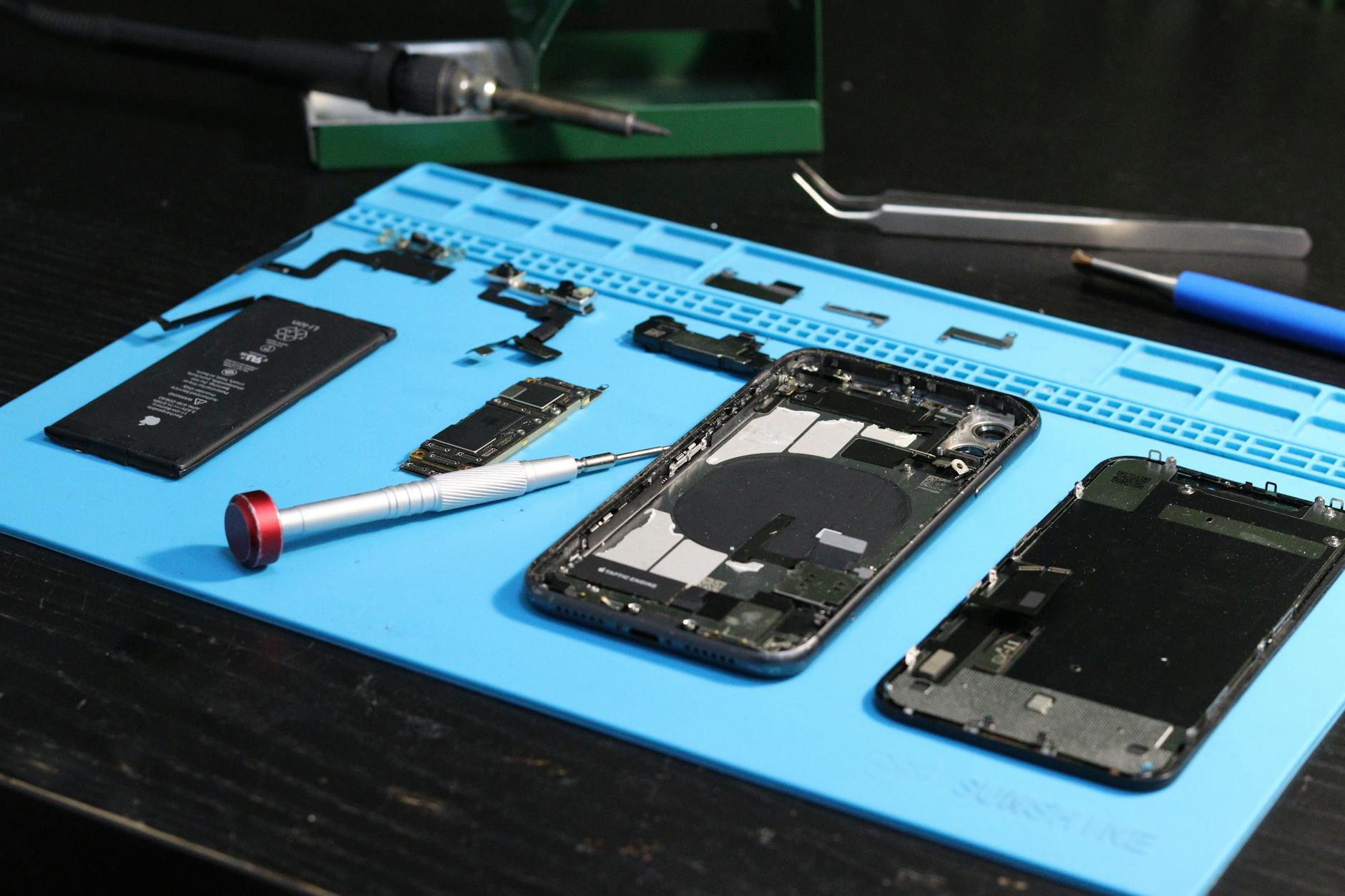
When a smartphone leaves your workshop, the customer expects not only a fully functional device but also clear proof that the repair was performed correctly. A Phone Repairer Work Completion Certificate provides that proof, builds trust, and protects both parties if a dispute arises. MyWorkProof offers a free, browser‑based generator that lets you create a professional‑looking certificate in minutes—no software download, no design skills required.
Work Completion Certificate
Create your professional document with the MyWorkProof generator.
Why a Work Completion Certificate Matters for Phone Repairers
In the highly competitive mobile‑repair market, reputation is everything. A well‑crafted certificate does more than confirm that a job is finished; it demonstrates that you follow a documented process, respect the customer’s ownership of the device, and are willing to stand behind your work. This simple document can:
- Reduce misunderstandings about what was repaired or replaced.
- Provide a written record for warranty claims.
- Enhance perceived professionalism, encouraging repeat business and referrals.
- Serve as evidence if a consumer protection agency asks for proof of service.
Even if local regulations require a specific form, the MyWorkProof certificate can supplement official paperwork, giving you a polished, printable record that matches your brand.
When to Use the Certificate
Not every phone repair needs a formal certificate, but consider using it in the following scenarios:
- Screen or battery replacements where the part is covered by a warranty.
- Complex board‑level repairs that involve multiple steps.
- Customer‑requested documentation for insurance or resale purposes.
- High‑value devices (e.g., flagship smartphones) where the owner expects detailed service logs.
- Any situation where the customer asks for written confirmation of the work performed.
If you run a small shop or a mobile repair service, having a ready‑to‑use template saves time and ensures consistency across all jobs.
Step‑by‑Step Guide to Generating Your Certificate
1. Open the MyWorkProof Generator
Navigate to the dedicated generator URL: https://www.myworkproof.net/?mwp=phone-repairer%7Cwork-completion-certificate. The page loads instantly in any modern browser.
2. Choose a Layout (Optional)
The tool offers a clean, professional layout by default. If you prefer a different orientation or logo placement, you can adjust these options before entering data.
3. Fill in the Required Fields
Enter the information requested in the form. Required fields are highlighted with an asterisk. The fields are organized into logical groups: Business Details, Customer Details, Repair Details, and Sign‑off.
4. Review the Live Preview
As you type, a live preview updates on the right side of the screen. This lets you spot any typos or missing data before finalizing the document.
5. Generate and Save
When everything looks correct, click the Generate Document button (the script will replace the link with a styled button). You can then print the certificate directly from the browser or save it as a PDF for digital delivery.
6. Provide a Copy to the Customer
Hand the printed certificate to the customer or email the PDF. Encourage them to keep it with the device’s warranty paperwork.
Preparing the Information You’ll Need
Having the right data on hand speeds up the process. Below is a checklist you can keep at your workstation:
- Business Name & Contact: Legal name, address, phone, email, and website.
- Technician Name: The person who performed the repair.
- Customer Name & Contact: Full name, phone number, email, and optionally a mailing address.
- Device Details: Make, model, IMEI (or serial number), and any identifying marks.
- Repair Summary: List of parts replaced, labor performed, and any diagnostics performed.
- Warranty Information: Length of warranty on parts and labor, if applicable.
- Date of Service: The day the repair was completed.
- Signature Fields: Space for both technician and customer signatures.
Having these items pre‑filled on a quick reference sheet reduces the chance of missing a required field.
Key Fields Explained
Understanding each field helps you convey the right level of detail without overwhelming the customer.
| Field | What to Include |
|---|---|
| Business Logo | Upload a high‑resolution PNG or JPEG of your shop’s logo. This reinforces branding. |
| Technician Name | Your full name or the name of the staff member who performed the work. |
| Device Model | Exact model name (e.g., iPhone 14 Pro Max) and storage capacity. |
| Serial/IMEI | Enter the device’s unique identifier; this ties the certificate to the specific phone. |
| Repair Description | Brief yet specific—e.g., “Replaced cracked front glass and calibrated touch sensor.” |
| Parts Used | List each part, its brand (OEM or aftermarket), and part number if known. |
| Labor Hours | Number of hours spent on the repair; useful for warranty calculations. |
| Warranty Period | State the length (e.g., “90 days parts and labor”). |
| Customer Signature | Provides acknowledgment that the device was returned in working order. |
| Technician Signature | Confirms the work was completed as described. |
Real‑World Example Certificate
Below is a realistic example you might see after completing a screen replacement on an iPhone 13. The layout mirrors what MyWorkProof produces, but the content is fully customizable.
---
**TechFix Mobile Repairs**
123 Main St, Anytown, USA | (555) 123‑4567 | info@techfix.com
Website: www.techfix.com
---
**Work Completion Certificate**
Date of Service: 2026‑10‑20
Technician: Alex Rivera

**Customer**
Name: Maria Lopez
Phone: (555) 987‑6543
Email: maria.lopez@example.com

**Device**
Make/Model: Apple iPhone 13, 128 GB
IMEI: 356789012345678

**Repair Summary**
- Replaced cracked front glass (OEM part #MFG12345)
- Re‑calibrated touch sensor and verified Face ID functionality
- Performed full diagnostic test; all systems normal

**Warranty**
90‑day parts and labor warranty (expires 2027‑01‑18)

**Sign‑off**
Customer Signature: ______________________   Date: __________
Technician Signature: _____________________   Date: __________
---
Copy the structure above into the generator fields, and the final PDF will look polished, with your branding and a clean table layout.
Common Mistakes to Avoid
- Leaving fields blank: Even optional fields add credibility. If a field truly does not apply, write “N/A” rather than leaving it empty.
- Incorrect IMEI or serial number: Double‑check the identifier; a typo can make the certificate useless for warranty claims.
- Using vague repair descriptions: “Fixed the phone” is not helpful. Specify parts and actions.
- Forgetting signatures: A missing signature can be interpreted as the customer not accepting the work.
- Not saving a copy: Keep a digital archive for your records. MyWorkProof does not store data, so you must retain it yourself.
Accuracy, Privacy, and Legal Considerations
The certificate is a self‑generated document. While it carries weight as proof of service, it does not replace any legally mandated forms that a regulator might require. If you operate in a jurisdiction that mandates specific repair logs, keep those official forms in addition to the MyWorkProof certificate.
All data you enter stays in your browser until you choose to print or save it as a PDF. MyWorkProof does not retain any personal or business information on its servers, so you retain full control over privacy.

Tailoring the Certificate for Different Service Models
Whether you run a fixed storefront, a mobile van, or a mail‑in repair service, the same certificate can be adapted. For on‑site repairs, add a “Service Location” line that notes the address where the technician performed the work. For mail‑in repairs, include a “Received By” field that records the date the device arrived at your facility and the condition on receipt. These extra rows are optional but provide a clearer audit trail for both parties.
Integrating the Certificate into Your Workflow
Most repair shops already use a POS or CRM system to track jobs. Export the job ID from that system and paste it into the “Reference Number” field of the certificate. This creates a direct link between the digital ticket and the printed proof, making it easier to retrieve the original work order if a warranty dispute arises. Some technicians also generate a QR code that encodes a URL to the stored job record; the MyWorkProof generator supports image uploads, so you can embed the QR code alongside your logo.
Handling Warranty Claims and Insurance
Insurance adjusters and manufacturers often request a signed work completion document before honoring a claim. By providing a certificate that includes part numbers, serial numbers, and a clear warranty period, you reduce the back‑and‑forth that typically delays reimbursements. Keep a master spreadsheet that logs the PDF filename, the customer’s email, and the date the certificate was sent. This simple index can be a lifesaver during audits.
Data Retention and Backup Strategies
Because MyWorkProof does not store your files, you must decide how long to keep certificates. A common best practice is to retain PDFs for at least the length of the longest warranty you offer plus one year (e.g., 180 days + 1 year = 1.5 years). Store them in a cloud folder with versioning enabled, and back up the folder weekly to an external hard drive. If you use a dedicated repair‑shop management platform, you can automate the upload of each generated PDF directly into the customer’s record.
Common Legal Pitfalls
In some regions, consumer‑protection laws require that repair documentation include a clear statement of the technician’s liability limits. Adding a short disclaimer such as “This certificate confirms the work performed as described. The shop is not liable for damage caused by subsequent mishandling or unauthorized modifications” satisfies many local statutes without diminishing the certificate’s credibility. Always review the disclaimer with a legal advisor familiar with your jurisdiction.
Professional Tone and Language
Use neutral, factual language. Avoid marketing hype (“the best repair in town”) within the certificate itself; the certificate’s purpose is verification, not promotion. Reserve promotional language for the invoice or a separate marketing brochure. Consistency in terminology (e.g., always using “OEM part” or “aftermarket part”) also helps when you later compare warranty claims across multiple jobs.
Advanced Customization Options
If you want a more branded look, the generator allows you to upload a header image, adjust margin sizes, and select between a portrait or landscape orientation. For tech‑savvy shops, consider adding a small QR code that links to a public page where the customer can verify the certificate’s authenticity. The QR code can be generated with any free online tool and then uploaded as an image.
Industry‑Specific Example: Tablet Repair
Tablet repairs share many of the same data points as phone repairs but often require additional fields such as “Screen Size” and “Battery Capacity.” Below is a concise example for a tablet screen replacement:
---
**GadgetCare Tablet Services**
456 Oak Ave, Tech City, USA | (555) 222‑3333 | support@gadgetcare.com
---
**Work Completion Certificate**
Date of Service: 2026‑10‑22
Technician: Priya Singh

**Customer**
Name: Daniel Kim
Phone: (555) 444‑5555
Email: daniel.kim@example.com

**Device**
Make/Model: Samsung Galaxy Tab S8, 256 GB
Serial: R58G7Z1K9L
Screen Size: 11‑inch

**Repair Summary**
- Replaced cracked LCD panel (OEM part #SMG‑TAB‑LCD‑11)
- Re‑calibrated touch input and verified stylus functionality
- Ran full diagnostics; battery health 92 %

**Warranty**
60‑day parts and labor warranty (expires 2027‑01‑21)
---
Notice the extra “Screen Size” row; you can add similar custom rows in the generator by using the “Additional Notes” field.
FAQs
- Do I need to register an account to use the generator? No. The tool is completely free and works without sign‑up.
- Can I customize the colors or fonts? The generator offers limited branding options such as logo upload and header alignment. For deeper styling you would need a separate design tool.
- Is the certificate legally binding? It serves as a professional record of work performed. For regulated repairs (e.g., safety‑critical devices), you may still need to submit official forms required by local authorities.
- Can I email the PDF directly from MyWorkProof? The platform does not send emails, but you can download the PDF and attach it to any email client.
- What if I make a mistake after generating? Simply return to the generator, correct the fields, and re‑generate a new PDF.
- Is there a limit to how many certificates I can create? No. The tool is unlimited for free use.
- How should I store the certificates for future reference? Save PDFs in a dated folder on a secure cloud service and keep a spreadsheet index linking each file to the original job number.
- Can I add a QR code for verification? Yes. Generate a QR code that points to a hosted verification page, then upload it as an image in the logo field.
- Do I need to include the IMEI for every device? Including the IMEI or serial number is strongly recommended because it ties the certificate to a specific unit and prevents disputes over which device was serviced.
- What disclaimer should I add? A brief statement limiting liability for post‑service mishandling is advisable. Example: “The shop is not responsible for damage caused after the device leaves our premises unless directly related to the documented repair.”
Ready to create a professional certificate for your next phone repair? Click the button below to launch the generator, fill in your details, and produce a polished PDF in seconds.
Comments
Post a Comment